
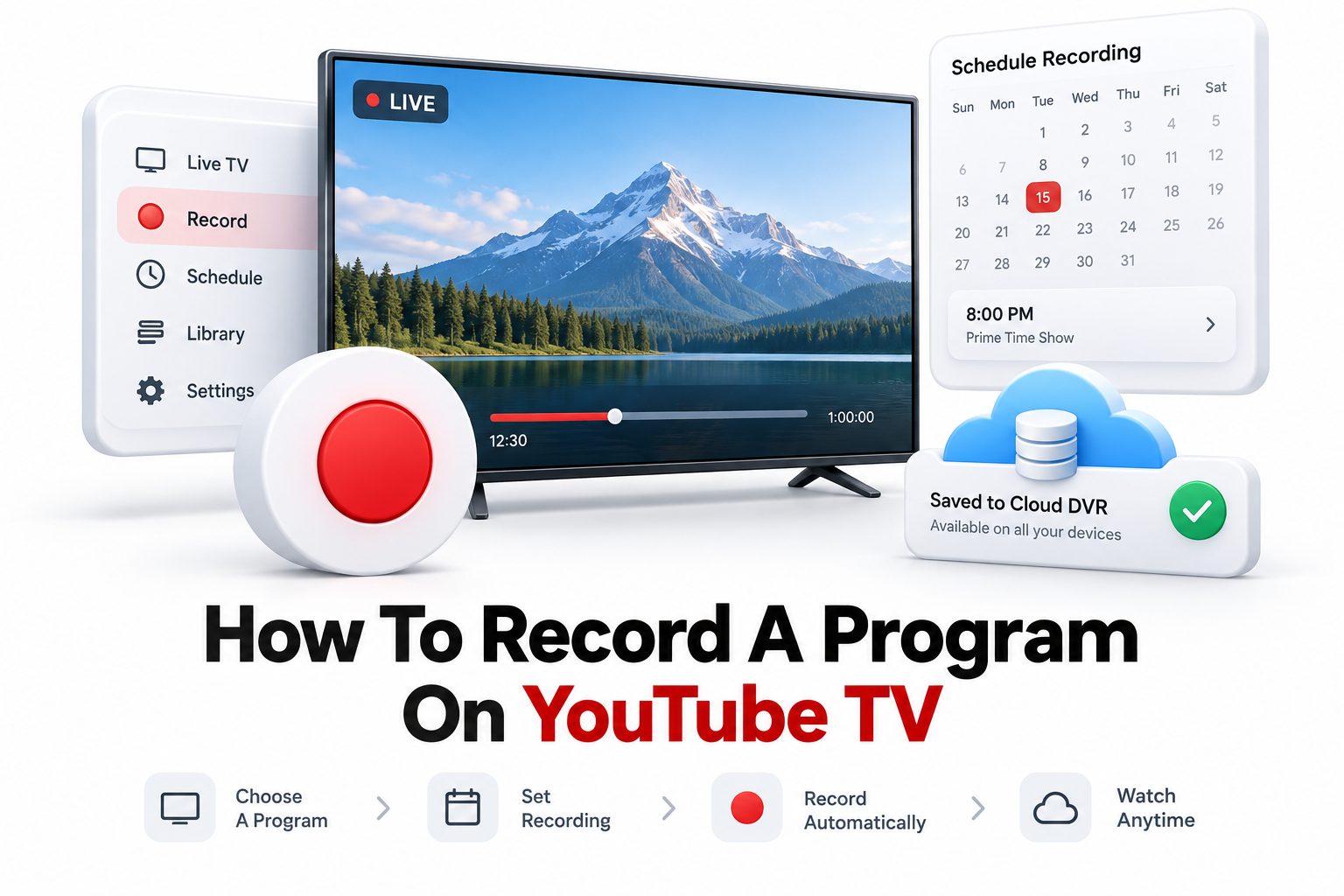
YouTube TV has become a favorite choice for people who want live television without cable boxes, long contracts, or complicated equipment. One of its most useful features is the built-in cloud DVR, which lets you save shows, movies, sports, and special events to watch later. If you are trying to learn how to record a program on YouTube TV, the good news is that the process is simple once you know where to look.
Unlike traditional DVRs, YouTube TV does not ask you to manage storage space or delete old recordings every week. You add a show, team, movie, or event to your library, and YouTube TV records available airings for you. That makes it especially useful for busy households, sports fans, and anyone who wants more control over when they watch live TV. This guide explains exactly how recording works, how to add programs to your library, what happens after recording, and how to avoid common mistakes.
How YouTube TV Recording Works
YouTube TV uses a cloud DVR system, which means your recordings are stored online rather than on a physical device in your home. You do not need a cable box, USB drive, or separate DVR subscription. Everything is managed inside your YouTube TV account.
When you add a program to your library, YouTube TV records future airings automatically when they are available through your subscribed channels. This can include new episodes, reruns, live sports, movies, news programs, and special broadcasts depending on the content and network rights.
The Difference Between Recording and Saving
On YouTube TV, the word “record” can feel a little different from old cable DVR language. Instead of pressing a record button for one specific airing, you usually add the program to your library. YouTube TV then handles the recording process in the background.
This system is helpful because you do not have to guess whether an episode will air again or manually set a timer. Once a title is in your library, future broadcasts are saved automatically as long as they are part of your available YouTube TV lineup.
Helpful Facts About YouTube TV DVR
YouTube TV includes unlimited cloud DVR storage with its base service.
Recordings are typically kept for up to nine months.
You can record multiple programs at the same time.
Each family member can have a separate library if they use their own profile.
Some programs may include both DVR and video-on-demand versions.
Recordings depend on channel availability and content rights.
You do not need to leave a device turned on for recordings to happen.
How to Record a Program on YouTube TV Using a TV
Recording on a smart TV or streaming device is usually the most comfortable option if you watch YouTube TV from your living room. The steps may vary slightly depending on whether you use Roku, Fire TV, Apple TV, Google TV, or a smart TV app.
Open the YouTube TV app, then search for the program you want to record. Select the show, movie, team, or event, and look for the plus icon. When you select the plus icon, the program is added to your library for future recording.
Using the Plus Icon Correctly
The plus icon is the main recording control in YouTube TV. Once selected, it usually changes to a checkmark or another indicator showing the program has been added. That visual change confirms that YouTube TV will begin saving eligible future airings.
For TV shows, adding the program often records all future episodes rather than one single episode. For sports, you may be able to add a specific team, league, or event depending on what YouTube TV offers for that sport.
Finding Your Saved Programs Later
After recording a program, go to the Library tab inside the YouTube TV app. This section organizes your saved content into categories such as shows, movies, sports, events, and recently recorded programs. It is the main place to find everything you have added.
If a program has not aired again yet, it may appear in your library without a playable recording. Once YouTube TV captures an eligible broadcast, the recorded version becomes available from that same library entry.
Quick Checklist Before Recording
Make sure you are signed in to the correct YouTube TV account.
Confirm the program airs on a channel included in your subscription.
Use the plus icon to add the title to your library.
Check the Library tab after the program airs.
Look for DVR versions if both DVR and on-demand options appear.
Use the correct household profile for personal libraries.
Keep your app updated on smart TVs and streaming devices.
How to Record on the YouTube TV Mobile App
The YouTube TV mobile app makes recording easy when you are away from home. This is useful if you remember a show while traveling, hear about a game from a friend, or see a movie listing you want to save for later.
Open the app on your phone or tablet, then use search or the Live tab to find the program. Tap the title, select the plus icon, and the program will be added to your library. You do not need to be connected to your home Wi-Fi.
Recording From Search Results
Search is often the fastest way to record a program on mobile. Type the title, team name, actor, movie, or event into the search bar. YouTube TV will display matching results, including upcoming broadcasts when available through your subscribed channels.
After selecting the correct result, tap the plus icon. This is especially helpful for programs that are not currently live but will air later. YouTube TV will watch for future broadcasts and record eligible airings automatically.
Recording From the Live Guide
The Live tab shows what is airing now and what is coming up soon. If you see something interesting in the guide, tap it to open the program details. From there, you can add it to your library before or during the broadcast.
If the program is already in progress, YouTube TV may record from the point you added it or provide available playback options based on rights and availability. For best results, add programs before they begin airing.
How to Record on a Computer Browser
Recording from a computer is a good choice when you want a larger screen for searching, browsing schedules, or managing your library. You can use YouTube TV in a supported web browser by signing in with your Google account.
Go to the YouTube TV website, search for the program, and open its details page. Select the plus icon to add it to your library. Once added, eligible future airings will be recorded automatically through the cloud DVR.
Managing Recordings From the Library
The Library section on a computer gives you a clear view of saved programs, recent recordings, scheduled content, and categories. It is useful when your library gets large and you want to find something specific without scrolling through a TV interface.
You can remove a program from your library by selecting it and choosing the option that removes it from saved content. This stops future recordings, though existing availability may depend on YouTube TV’s system and content rules.
When Browser Recording Is Most Useful
A browser is especially useful for planning ahead. You can search more quickly, compare programs, and add multiple shows or teams in one sitting. For people who follow several series or sports leagues, this can save time.
It is also helpful when a TV app feels slow or difficult to navigate. Adding programs from a laptop or desktop updates your YouTube TV library across supported devices linked to the same account.
Device Comparison for Recording on YouTube TV
Smart TV or streaming device: Best for recording while watching live TV from the couch.
Mobile app: Best for adding programs quickly when away from home.
Computer browser: Best for searching, organizing, and managing several titles.
Tablet app: Best for browsing with a larger touch screen.
Family profile: Best when each person wants their own saved programs.
Voice-enabled remote: Useful when searching titles on supported devices.
Recording TV Shows and Series
When you add a TV show to your YouTube TV library, the service usually records all available future episodes from your subscribed channels. This includes new episodes and reruns, depending on the network schedule and rights.
This is convenient for weekly series because you do not have to record each episode one by one. Once the show is saved, YouTube TV keeps adding eligible episodes as they air, helping you stay current without checking the schedule every week.
New Episodes and Reruns
YouTube TV may save both new episodes and repeat broadcasts. This can be helpful if you start watching a show midway through a season. Reruns may fill in gaps when networks air earlier episodes again.
However, the exact episodes available depend on what the network broadcasts and what YouTube TV is allowed to provide. If an older episode never airs again, it may not appear as a DVR recording, though an on-demand version may be available.
Organizing Series in Your Library
Recorded series are usually grouped by title, season, and episode. This makes it easier to find the episode you want rather than searching through individual recordings. The layout can vary by device, but the Library tab remains the main hub.
If you save many shows, your library may become crowded. Removing programs you no longer watch can make it easier to find current favorites, even though storage itself is not a problem because YouTube TV offers unlimited DVR space.
Recording Movies on YouTube TV
Recording movies works much like recording shows. Search for the movie title, open the details page, and add it to your library. When the movie airs on a channel included in your plan, YouTube TV records it for later viewing.
This is a useful habit if you notice a movie coming up but cannot watch it live. You can add it once and let YouTube TV capture a future airing, instead of buying or renting the movie from another service.
DVR Movies Compared With On-Demand Movies
Sometimes YouTube TV offers both DVR and on-demand versions of the same movie. The DVR version is recorded from a live channel airing. The on-demand version is provided by the network or content owner and may have different ad rules.
If both options appear, check the available versions before watching. Many viewers prefer DVR recordings because they may offer more control, but availability and playback features can vary depending on the network and program.
Finding Upcoming Movie Airings
Search is the easiest way to find whether a movie is scheduled to air. If YouTube TV shows upcoming airings, adding the movie to your library lets the system record it when one becomes available.
You can also browse movie sections inside the app, though search is usually more efficient for a specific title. If the movie is not scheduled, adding it may still help if a future airing becomes available later.
Practical Tips for Movies and Series
Add shows early in the season so future episodes are captured.
Search by exact title when similar names appear.
Check whether you are playing the DVR or on-demand version.
Remove finished series to keep your library tidy.
Add movies even if they air late at night.
Use profiles so family members do not mix watchlists.
Visit [Internal Link: YouTube TV Channel Guide] for help checking available networks.
Recording Live Sports on YouTube TV
Sports recording is one of the strongest reasons to use YouTube TV’s DVR. You can save individual games, specific teams, leagues, or sports events, depending on availability. This is useful when games overlap or air during work, travel, or family time.
To record sports, search for the team, league, or event inside YouTube TV. Open the result and add it to your library. YouTube TV will record eligible live broadcasts from channels included in your subscription and location.
Recording a Specific Team
Adding a favorite team can save you from manually recording every game. When available, YouTube TV records games involving that team across supported channels. This can include regular season games, postseason matchups, and other related broadcasts.
Local and national broadcast rights still matter. Some games may be unavailable because of regional restrictions, channel limitations, or league agreements. Always check your Live guide if a specific game is especially important.
Recording Big Events and Tournaments
For major events, YouTube TV may let you add the entire event, league, or tournament. This can be helpful for playoffs, award shows, racing events, tennis tournaments, and other multi-day programming.
Because event coverage may span several channels and time slots, adding the event early is wise. YouTube TV can then capture eligible broadcasts as they appear in the schedule, reducing the chance that you miss important coverage.
What Happens After You Add a Program
After you add a program to your library, YouTube TV starts tracking future airings. You do not need to keep the app open, leave your TV on, or manually confirm every recording. The cloud DVR handles the process through your account.
Once a recording becomes available, it appears inside the Library tab. Depending on the program, you may see episode lists, versions, airing dates, or playback choices. YouTube TV may also show upcoming scheduled airings for saved programs.
Why Some Recordings Do Not Appear Immediately
If you add a program after it already aired, YouTube TV cannot always create a DVR recording from the past. You may need to wait until the next eligible airing. This is a common point of confusion for new users.
Some titles may show an on-demand version before a DVR version is available. On-demand content can be useful, but it is not the same as a cloud DVR recording and may include different advertising or playback restrictions.
How Long Recordings Stay Available
YouTube TV recordings are generally kept for up to nine months. After that period, recordings may expire. Since storage is unlimited, you usually do not need to delete recordings to make space for new ones.
The nine-month window gives most viewers plenty of time to catch up. Still, if a recording is important, avoid waiting too long. Sports, specials, and seasonal content can be easy to forget once your library grows.
Important Recording Limits to Know
Unlimited DVR does not mean every program is available forever.
Recordings usually expire after about nine months.
Some content rights may affect playback options.
Local channel availability can affect sports recordings.
Adding a show records future airings, not always past episodes.
On-demand versions may appear alongside DVR versions.
Removing a program stops future recordings for that title.
How to Watch Recorded Programs
To watch a recorded program, open YouTube TV and go to the Library tab. Choose the category that matches your content, such as Shows, Movies, Sports, or Events. Select the title, then choose the episode or recording you want to play.
If several versions are available, look carefully before pressing play. You may see a DVR recording, an on-demand version, or a recent airing. Choosing the right version helps you get the viewing experience you expect.
Using Resume and Start From Beginning
YouTube TV usually lets you resume programs you have already started. This is useful if you watch part of a recording on your TV and later continue on your phone or laptop. Your progress is tied to your account.
For live programs that are currently recording, you may be able to start from the beginning while the broadcast is still in progress. This is especially useful for sports, news events, and live specials you join late.
Watching Across Different Devices
Because recordings are stored in the cloud, you can watch them on supported devices connected to your YouTube TV account. You might record from your phone, watch on your living room TV, and finish later on a laptop.
This flexibility is one of the biggest advantages over traditional DVRs. There is no single box holding your recordings, so your library follows your account rather than one device in one room.
How to Remove a Program From Your Library
If you no longer want YouTube TV to record a program, remove it from your library. Open the program details page and select the checked icon or library control. This tells YouTube TV to stop saving future eligible airings.
Removing a title helps keep your library easier to manage. Since storage is unlimited, this is more about organization than space. A cleaner library makes it faster to find what you actually plan to watch.
When to Clean Up Your Library
You may want to clean up your library after a season ends, when you lose interest in a show, or when a sports season is over. This keeps old titles from crowding your current recordings and recommendations.
Families should also encourage each person to use their own profile. That way, one person’s sports recordings do not mix with another person’s cooking shows, dramas, or kids’ programming.
Removing Versus Deleting Recordings
Traditional DVRs often make you delete recordings to free up storage. YouTube TV works differently. Removing a program mainly stops future recordings and clears the title from your active saved list.
Because recordings are managed by YouTube TV’s cloud system, availability can behave differently from a home DVR. Think of your library as a saved-program manager rather than a hard drive full of files.
Library Management Tips
Remove shows you no longer watch.
Use separate profiles for different viewers.
Search your library instead of scrolling endlessly.
Check recently recorded items first for new episodes.
Keep favorite teams saved only during active seasons.
Review movies after watching them.
Use [Internal Link: Streaming TV Tips] for more ways to organize viewing.
Common Problems With YouTube TV Recordings
Most recording issues come from timing, channel availability, account confusion, or mistaking on-demand content for DVR content. The system is reliable, but it works differently enough from cable DVRs that new users sometimes expect different behavior.
If a recording is missing, first confirm the program actually aired on a channel in your YouTube TV plan. Then check whether you added it before the airing, whether you are in the right profile, and whether another version is listed.
Program Was Added Too Late
If you add a program after it has already started or ended, YouTube TV may not provide a complete DVR recording. You might receive a partial recording, an on-demand version, or no DVR version until a future airing occurs.
For important events, add them as early as possible. This is especially true for live sports, award shows, finales, and one-time broadcasts where there may not be many repeat airings.
Wrong Profile or Account
YouTube TV libraries can vary by profile. If you use family sharing, each person may have their own saved programs and viewing history. A recording added under one profile may not appear where another person expects it.
Before troubleshooting further, check that you are signed in to the correct Google account and YouTube TV profile. This simple step solves many cases where recordings seem to disappear.
Best Practices for Recording Without Hassle
The easiest way to avoid problems is to add programs before they air and use the Library tab as your main control center. Search for exact titles, confirm the plus icon has changed, and check your profile before assuming a recording is missing.
It also helps to learn the difference between DVR recordings and on-demand versions. Both can be useful, but they are not always identical. Checking the available playback options gives you more control over how you watch.
Set Recordings as Soon as You Find Them
If you see a show, movie, or game you might want later, add it immediately. Since storage is unlimited, there is little downside. You can always remove it later if you decide you are not interested.
This habit is especially helpful for movies and live events. Waiting until the last minute increases the chance that you forget, add it late, or miss the only airing that fits your schedule.
Use Search Instead of Browsing Only
The Live guide is useful, but search is usually faster when you know what you want. Search can reveal upcoming airings, related programs, teams, leagues, movies, and series pages that may not be visible in the current guide window.
For sports, try searching by team name and league name. For shows, use the exact title. For movies, include the release year if several titles share a similar name.
Quick Recording Tips for Better Results
Add important programs before they begin.
Confirm the plus icon changed after selection.
Use search for exact titles and teams.
Check the Library tab after the program airs.
Choose DVR when multiple versions appear.
Keep profiles separate in family accounts.
Review saved programs monthly for easier browsing.
Record sports teams early in the season.
Conclusion
YouTube TV makes recording live TV much easier than the old cable DVR approach. Instead of managing boxes, storage limits, and recording conflicts, you simply add programs to your library and let the cloud DVR do the work. Shows, movies, sports, and live events can all be saved this way when they are available through your subscribed channels.
The key is knowing how the system thinks. Add programs early, use the plus icon, check the Library tab, and remember that future airings are what YouTube TV is built to capture. It also helps to recognize the difference between DVR recordings and on-demand versions, especially when playback options vary by network.
Once you get used to the workflow, how to record a program on YouTube TV becomes second nature. With unlimited DVR storage, multi-device access, and profile-based libraries, it gives viewers a practical way to watch television on their own schedule.
FAQ
Can I record only one episode on YouTube TV?
YouTube TV usually records the full series when you add a show to your library. It does not work like a traditional DVR with single-episode timers, though you can choose which recorded episodes you actually watch.
Does YouTube TV charge extra for DVR recording?
No, YouTube TV includes unlimited cloud DVR storage with the base subscription. You do not need to pay a separate DVR fee, buy equipment, or manage physical storage space for your recordings.
Why is my YouTube TV recording showing ads?
Some programs may play as on-demand versions instead of DVR versions, and on-demand content can include required ads. Check the available versions and choose the DVR recording when that option is available.
Can I record sports games on YouTube TV?
Yes, YouTube TV lets you record many sports games, teams, leagues, and events. Availability depends on your location, subscribed channels, broadcast rights, and whether the game is carried by a network in your plan.
How long do YouTube TV recordings last?
YouTube TV recordings are generally available for up to nine months. Since DVR storage is unlimited, you do not need to delete recordings to make room, but older recordings may expire automatically.
0 Comments